Каждый чат начинается с Момента — сцены, привязанной к персонажу (см. Моменты и сценарии). Выберите один из раздела Обзор или на странице персонажа, и чат откроется с вступительной репликой персонажа. Дальше вы пишете ответ, и история разворачивается вместе.
Это руководство охватывает чат от начала до конца: как формируются ответы, инструменты вокруг поля ввода, модели и память, а также как редактировать или перематывать историю. Используйте список на этой странице, чтобы перейти к любой функции.
Как персонаж отвечает
Когда вы отправляете сообщение, Rubii строит ответ из нескольких слоёв источников — не только из вашей последней реплики:
- Настройки персонажа — личность, манера речи и правила персонажа, написанные его создателем. Приватные и всегда действуют (см. Создание первого персонажа).
- Момент — вступительная реплика и сцена, в которую вы вошли (см. Моменты и сценарии).
- Ваша Персона — кто вы в этой истории (см. Персоны ниже).
- Память — текущее резюме предыдущих раундов плюс недавняя расшифровка (см. Как работает память ниже).
- Ваше последнее сообщение — ваши слова и любые указания, которые вы даёте в моменте.
Персонаж остаётся в образе: он следует своей личности и логике сцены, реагирует на ваши действия и подчиняется разумным указаниям, которые вы даёте по ходу.
Как писать сообщения
Вы пишете речь и повествование вместе, естественно. Заключайте речь в двойные кавычки, а действия — в одиночные звёздочки, чтобы сделать их курсивом:
Пример — «Ты снова опоздал.» Она закрывает книгу и наконец поднимает на тебя взгляд.
Звёздочки — это просто обычный курсив, а не специальная команда: персонаж просто читает всё, что вы пишете. Ответы приходят в виде речевых пузырей плюс блоков повествования, поэтому диалог и описание визуально разделены.
Чтобы отправить, нажмите круглую кнопку отправки (или Shift+Enter). Обычный Enter просто добавляет новую строку.
Управление историей — хорошо и плохо
Вы соавтор. Чем яснее ваше намерение, тем лучше ответ.
- Хорошо — размещайте постоянные факты в нужном месте. Кто такой персонаж — в его Настройках персонажа; кто такие вы — в вашей Персоне; сцена — в Моменте. А в чате просто играйте.
- Хорошо — давайте указания в моменте. Простые просьбы работают: «Делай ответы короче», «Сначала опиши комнату», «Замедли темп». Более поздние указания отменяют более ранние.
- Избегайте — писать за персонажа его мысли. Не диктуйте его чувства или решения («Он внезапно признаётся, что любит тебя»). Создайте ситуацию и дайте ему отреагировать.
- Избегайте — полагаться на деталь из сообщения 50 шагов назад. Старые ходы резюмируются (см. Как работает память), поэтому мелкие детали могут размываться. Повторяйте всё, что должно оставаться точным.
Подсказки для ввода
Не знаете, что сказать? Нажмите кнопку-искру слева от поля ввода, чтобы получить три предложенных ответа, написанных от вашего лица.
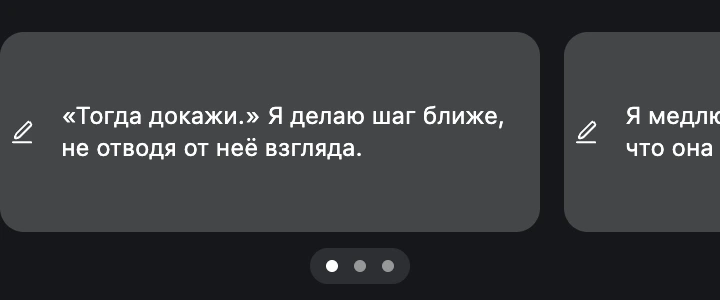
- Каждая карточка — это одна возможная следующая реплика или действие; три варианта намеренно разные (например, смелый / осторожный / игривый).
- Нажмите карточку, чтобы сразу отправить, или нажмите карандаш, чтобы вставить её в поле ввода и сначала отредактировать.
- Подсказки бесплатны и автоматически соответствуют языку разговора.
- Они кэшируются примерно на час, поэтому одна и та же сцена возвращает те же три варианта, пока история не сдвинется. Карточка, показывающая только «......», — это заглушка для пропущенной подсказки; просто нажмите кнопку ещё раз.
Редактирование, пересоздание и перемотка
У каждого сообщения есть элементы управления; у последнего ответа есть несколько дополнительных. Используйте их, чтобы формировать историю, а не начинать заново.
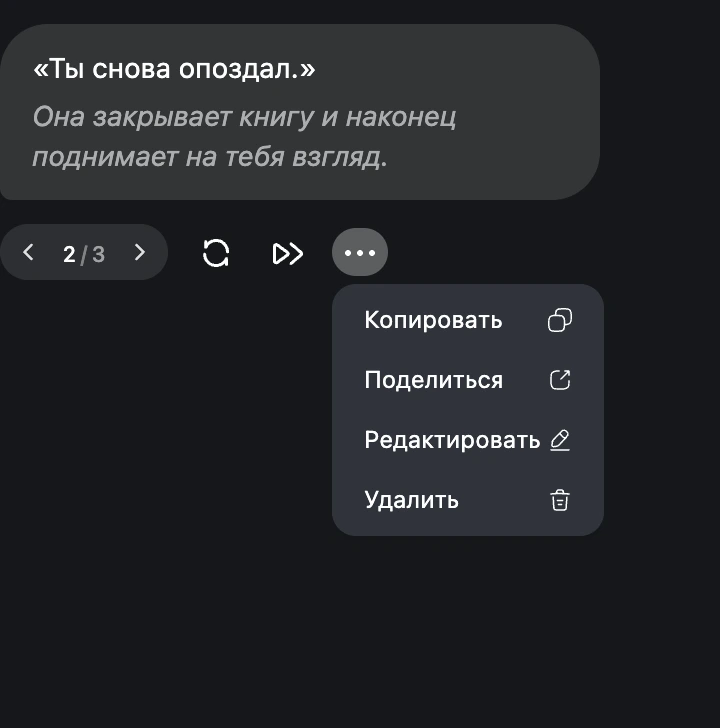
На последнем ответе ИИ (встроенные значки):
- Пересоздать — создаёт другую версию того же ответа. Прежние версии сохраняются; используйте стрелки ‹ 1 / 3 ›, чтобы сравнить и выбрать одну.
- Продолжить — продлевает тот же ответ дополнительным текстом, а не заменяет его.
В меню ··· («Ещё») на любом сообщении:
- Редактировать — переписать текст сообщения. Это меняет только сохранённый текст; персонаж не отвечает на правку. (В Chat 2.0 можно редактировать только самый последний раунд.)
- Перемотать / Отозвать — одна и та же кнопка, названная по тому, чьё это сообщение:
- Перемотать (на сообщении ИИ) удаляет всё после этого сообщения и сохраняет его — откатите историю к этому моменту, а затем продолжайте.
- Отозвать (на вашем сообщении) удаляет это сообщение и всё после него, а ваш текст возвращается в поле для переписывания.
- Удалить — убирает весь раунд (ваше сообщение и ответ на него).
- Копировать / Поделиться — скопировать текст или выбрать сообщения, чтобы поделиться.
Перемотку, Отзыв и Удаление нельзя отменить, поэтому каждое действие просит подтверждения.
- Хорошо: используйте Пересоздать, когда хотите просто иной вариант на тот же запрос — это сохраняет альтернативы. Используйте Редактировать для опечаток, которые не должны мешать истории.
- Избегайте: перематывать далеко назад ради одной мелочи — всё после этой точки исчезает навсегда.
Новый чат и история
Каждый разговор с персонажем — это независимая сессия.
- Новый чат начинает с чистого листа с тем же персонажем и Моментом. Персонаж ничего не помнит из других ваших чатов — память никогда не передаётся между разговорами.
- История заново открывает прошлый разговор ровно там, где вы остановились. Один персонаж может одновременно вести множество параллельных сюжетных линий.
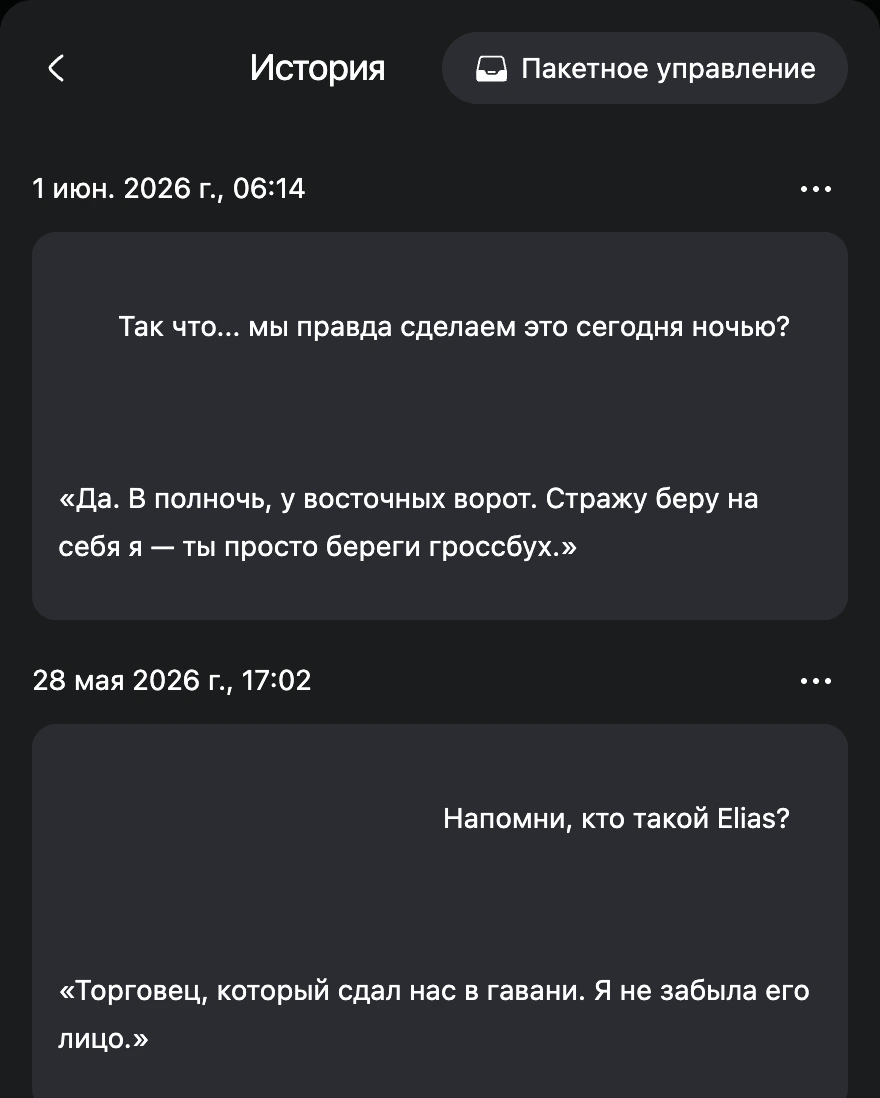
- Хорошо: начните Новый чат, чтобы попробовать другую сюжетную линию или сбросить всё после того, как нить ушла не туда. Откройте Историю, чтобы продолжить существующую историю с полной памятью.
- Избегайте: ожидать, что Новый чат запомнит ваши отношения или сюжет из прошлого чата — не запомнит. Вместо этого откройте старую сессию из Истории.
Персоны
Персона — это ваша личность в чате: Никнейм, которым персонаж вас называет, плюс краткое описание того, кто вы. Она определяет, как персонаж к вам относится; она не меняет самого персонажа.
Персоны сохраняются для каждого Момента, с двумя встроенными карточками (По умолчанию для момента и Глобальная персона) плюс любые созданные вами. У активной есть значок Используется; нажмите Использовать, чтобы переключиться. Полные сведения в Использование персон.
- Хороший никнейм: короткая форма обращения — Алекс, Капитан, Сестрёнка.
- Хорошая персона: сжатый контекст, нужный персонажу — «25-летний детектив; давний соперник персонажа, который втайне о нём заботится.»
- Избегайте: вписывать реплики персонажа в свою Персону или нагружать её посторонней предысторией.
Выбор модели
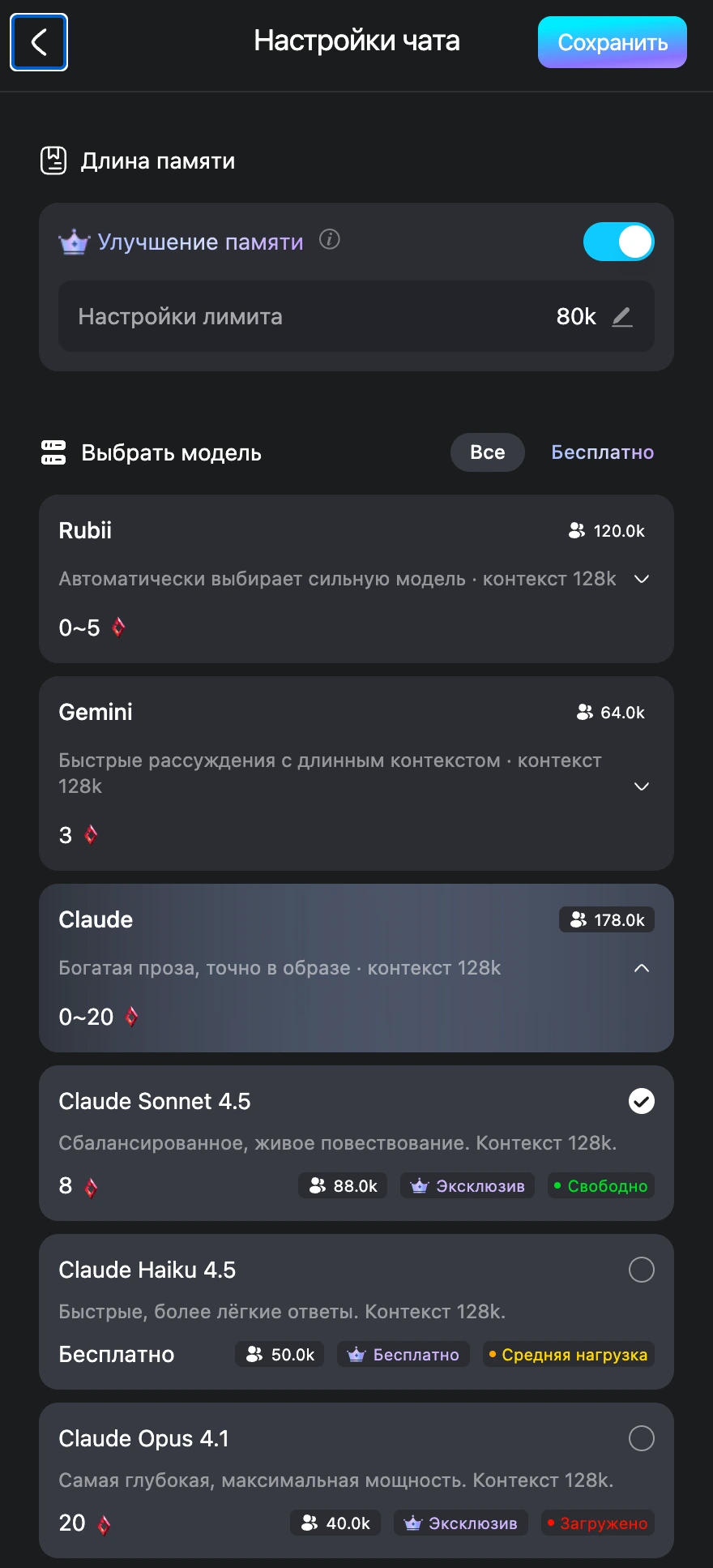
Нажмите кнопку модели на панели инструментов чата, чтобы выбрать, какой ИИ управляет ответами. Модели сгруппированы в серии (Rubii, Gemini, Claude, GPT и другие).
-
Rubii находится сверху и автоматически выбирает для вас сильную ролевую модель.
-
Вкладка Бесплатно перечисляет модели, не стоящие рубинов. Тег статуса — Свободно / Средняя нагрузка / Загружено — показывает текущую нагрузку.
-
Значок Эксклюзив отмечает модели Rubii+. У каждой модели указана цена (рубины за ответ) или Бесплатно.
-
Смена модели влияет только на будущие ответы; она никогда не переписывает прошлые сообщения.
-
Хорошо: для длинных историй предпочтите серию с большей памятью и проверьте тег статуса перед выбором.
-
Избегайте: считать, что любая модель удержит всю вашу историю — у каждой модели есть предел ёмкости (см. Улучшение памяти ниже).
Как работает память: Заметка
Персонаж не хранит идеальную расшифровку вечно. По мере роста чата Rubii пишет Заметку — ИИ-резюме старых раундов, сгруппированных в этапы, — и подаёт его обратно, чтобы персонаж «помнил», что произошло. Недавние раунды по-прежнему передаются полностью; резюмируются только старые.
- Кратко вверху ветки — это скользящее резюме; панель Заметка (в меню ввода) перечисляет каждый этап.
- Для каждого этапа можно Развернуть, перейти К сцене, Редактировать или Пересоздать.
- Короткий чат может показывать Заметки пока нет — резюме начинаются только после того, как накопится достаточно событий.
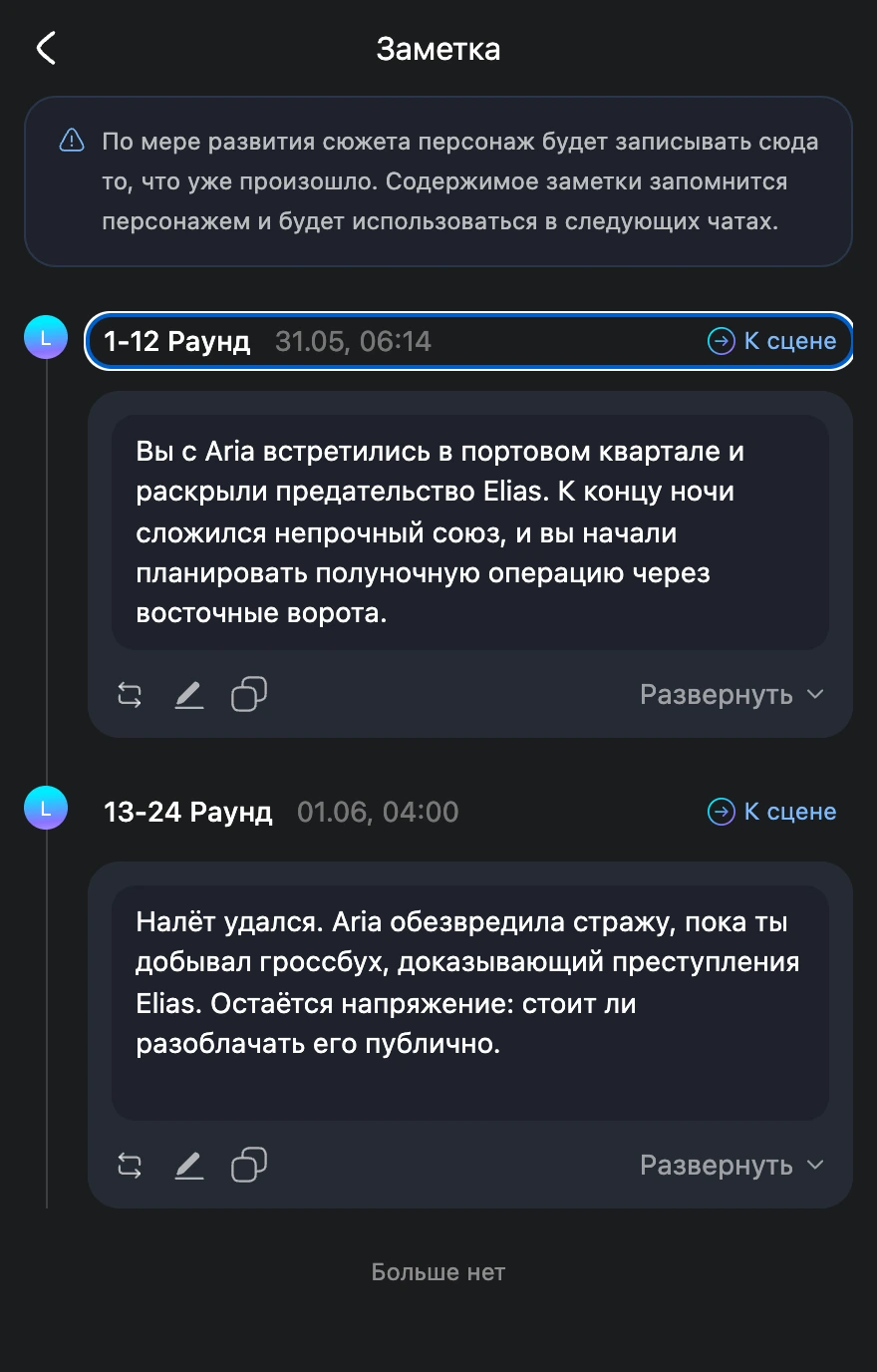
- Хорошо: редактируйте Заметку, чтобы исправить смещение — неверное имя, забытое обещание — простым третьим лицом, в стиле существующего текста. Это направляет остаток сессии.
- Избегайте: писать в Заметку указания или реплики от первого лица. Это запись произошедшего, а не команда, и персонаж может запутаться.
- Примечание: редактирование Заметки влияет только на будущие ответы, не на уже полученные. (Редактирование требует Rubii+; пересоздание требует Pro или Premium.)
Улучшение памяти и токены
По умолчанию каждый ответ работает в фиксированном бюджете около 24 000 токенов контекста. Улучшение памяти повышает этот бюджет, чтобы персонаж мог опираться на больший объём настроек и истории сразу. Это функция Rubii+, и её нужно включить внутри Chat 2.0 (см. раздел Включение Chat 2.0 ниже).
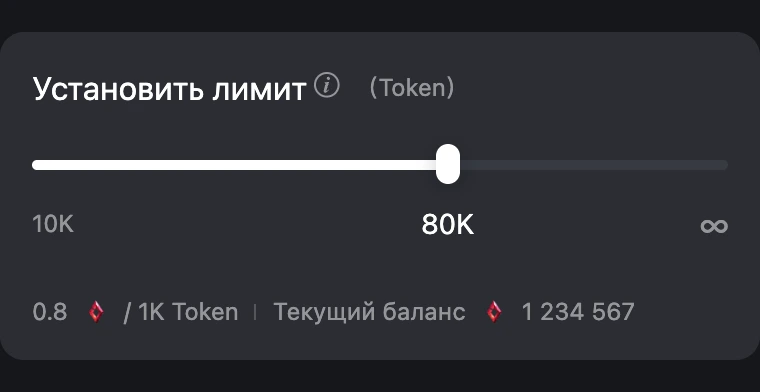
Что такое токен? Токен — это небольшой фрагмент текста, очень грубо короткое слово или его часть. Настройки персонажа, ваша персона, Заметка и недавние сообщения — всё расходует токены. У каждого ответа есть бюджет токенов; больше контекста означает больше токенов.
Всегда ли длиннее лучше? Нет. Важны два ограничения:
- Ёмкость модели. Каждая модель вмещает лишь определённый объём (часто около 128K токенов). Превысьте его — и самый старый контекст всё равно отбрасывается, а перегрузка модели у её предела обычно снижает качество ответов («отупление»).
- Стоимость. Дополнительный бюджет оплачивается за фактически использованные токены сверх базы 24K (округление до 1K, по цене модели за 1K). Вы платите только за использованное, никогда за установленный потолок.
Практичная золотая середина — около 40K. Большинство моделей комфортно справляются с ~40K; лишь более дорогие модели с большей ёмкостью вмещают намного больше. Установите дополнительный бюджет так, чтобы итог был близок к реальной ёмкости модели — а не слепо до ∞.
- Хорошо: повышайте бюджет для длинных, медленно разгорающихся историй или когда видите предупреждение о памяти («амнезии»). Тяжёлый текст персонажа / момента / персоны съедает базовые 24K, поэтому насыщенным настройкам нужен больший бюджет уже для того, чтобы не забывать раннее.
- Избегайте: выставлять бюджет на ∞ на дорогой модели «на всякий случай» — за пределом ёмкости модели он всё равно обрезается, качество может падать, а вы тратите больше рубинов. Сочетайте модель с большой ёмкостью и больший бюджет только тогда, когда вам действительно нужна глубокая память.
Включение Chat 2.0
Улучшение памяти (и новейший опыт чата) живут в Chat 2.0 — экспериментальном режиме, который вы один раз включаете в своём профиле:
- Откройте свой Профиль (страницу Мой).
- В левой боковой панели найдите внизу карточку Экспериментальные функции.
- В строке Настройки чата включите тумблер Включить Chat 2.0 (экспериментальная функция).
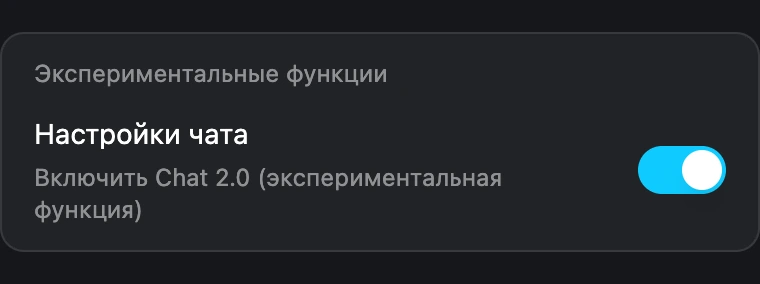
После включения карточка Улучшение памяти появляется на панели модели во время чатов. Chat 2.0 можно снова выключить тем же способом.
Архив
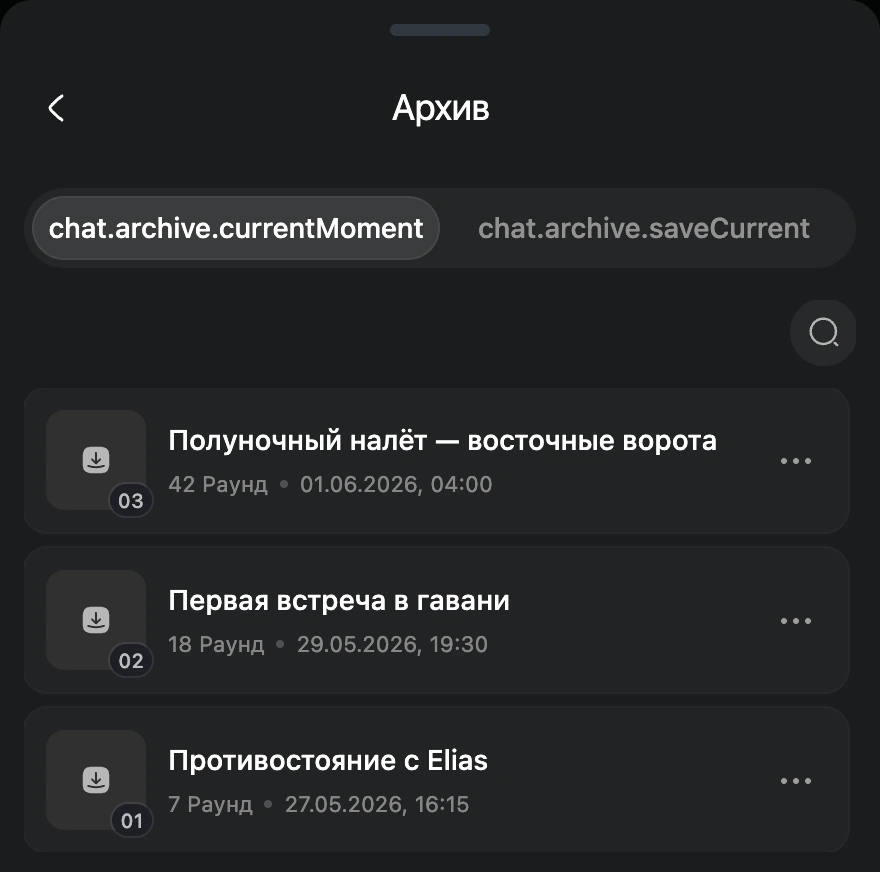
Архив сохраняет именованный снимок текущего чата, который можно загрузить позже — ручной слот сохранения и система ветвления.
-
Сохранить текущий сохраняет весь разговор под заголовком (3–30 символов).
-
Загрузка архива открывает свежую копию и заменяет ваш текущий чат (с запросом подтверждения). Сам архив не расходуется — его можно загружать снова и снова.
-
Сколько их можно хранить, зависит от вашего плана: Free 20 · Plus 200 · Pro 2 000 · Premium без ограничений. Архивирование не стоит рубинов.
-
Хорошо: заархивируйте перед рискованным поворотом сюжета, затем ветвитесь — загрузите, чтобы попробовать один путь, заархивируйте, потом загрузите оригинал, чтобы попробовать другой.
-
Избегайте: относиться к Архиву как к живому чату. Загрузка заменяет то, что на экране, и текущий чат не сохраняется автоматически.
Заметка о контенте и стоимости
Чаты следуют Правилам контента, а фильтр чувствительного контента управляет тем, что появляется в Rubii. Каждый ответ ИИ тратит рубины (см. Рубины и Rubii+).